#Setting Up the Integration
In the CX-Engine application, go to the Integrations menu. The page displays all currently connected integrations along with their associated API keys. To connect a new CRM, click the Add Integration button, select the integration corresponding to your CRM, choose the desired authentication method, and fill in the corresponding parameters (URL, username, password, etc.). The specific requirements for each integration are listed further down this page.
Once connected, the integration appears in the list with its API key visible. You can then configure it from the CRM Connector > Settings menu.
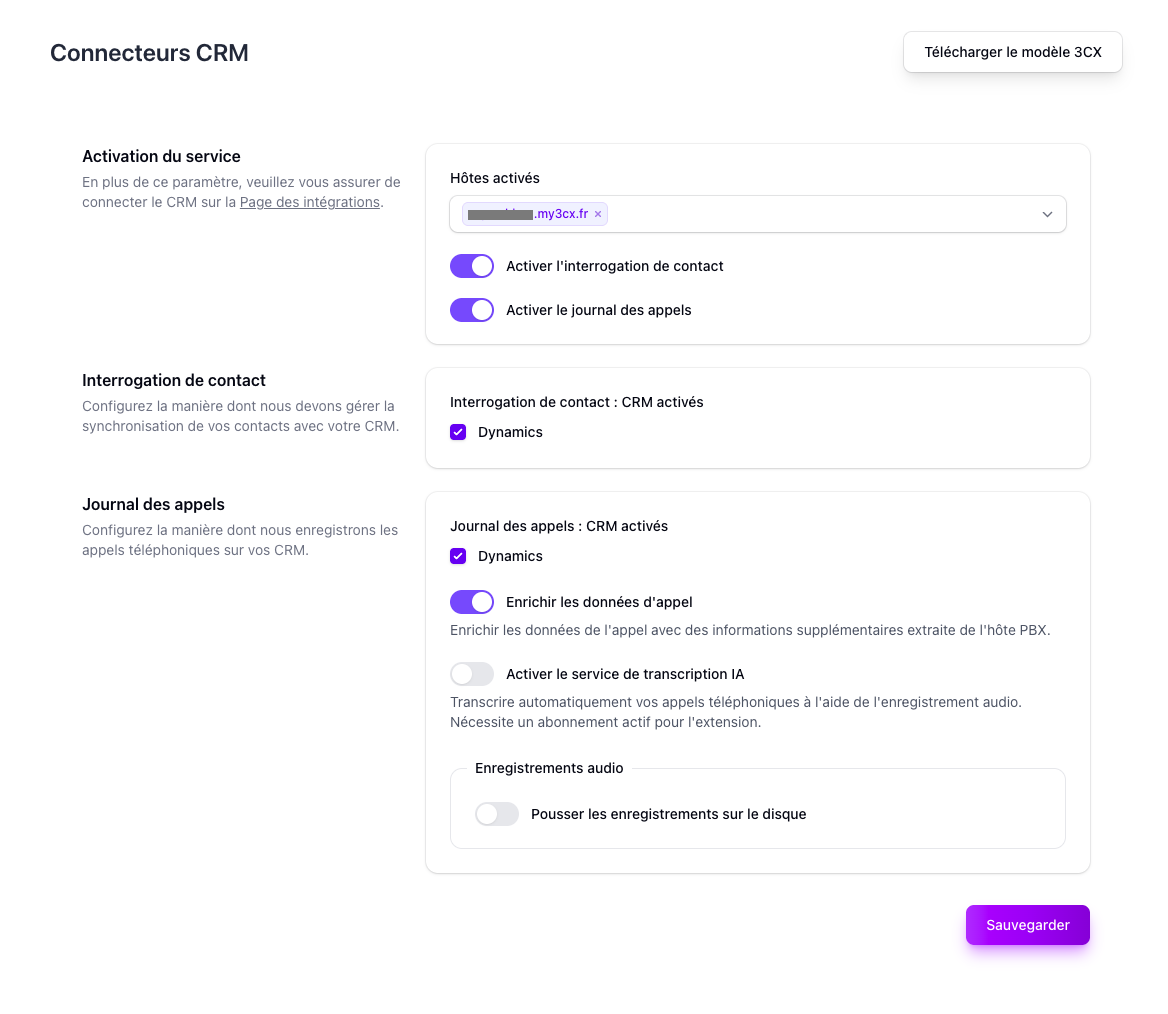
In the Settings menu, features such as contact lookup and call logging are configured in two steps:
- Enable the feature at the general level by toggling it on
- Under each enabled feature, check the desired integrations to activate it for
If one or more PBXs are associated with the account, you can also enable call data enrichment. This allows retrieval of information not transmitted by the native IPBX CRM integration — for example, the direct line dialed by the contact, call segments, audio recordings, etc.
#Integration-Specific Setup
#Business Central (via Dynamics 365)
Prerequisites
Before proceeding with the configuration, make sure you have the following information provided by Business Central:
- The API URL of your instance, for example
https://api.businesscentral.dynamics.com/v2.0/{tenant-id}/Dev/ODataV4/Company('CX-Engine') - The
client_id/client_secretpair for authentication
Enabling the Integration
In the CX-Engine application's "Integrations" menu, click Add Integration and select Dynamics 365.
In the popup window, enter the following values:
- API Key Type: OAuth 2.0 Client Credentials
- API URL: Enter the base API URL:
https://api.businesscentral.dynamics.com - Client ID: Enter your
client_id - Client Secret: Enter your
client_secret - Tenant ID: Enter the company name from
Company(), without quotes — for exampleCX-Engine - Scope: Enter the portion just before
ODataV4— for exampleDev

In the CRM Connector > Settings menu, click Configure on the Dynamics 365 integration, then select the Dynamics 365 Business Central variation. In the table lookup order, add a section for the built-in Contacts table.
When an agent creates a contact from the screen-pop, CX-Engine creates it in this same Contacts table, as a contact of type Person.
#Loji (by Neoteem)
Prerequisites
Before proceeding with the configuration, make sure the call logging module is enabled on your Loji instance. You will need the following information provided by Neoteem:
- The URL and port of the Loji instance
- The username / password pair for authentication
Enabling the Integration
In the CX-Engine application's "Integrations" menu, click Add Integration and select Neoteem.
In the popup window, enter the following values:
- API Key Type: Basic Auth
- API URL: Enter the base API URL and port of your instance, for example
https://voip.neotimm.com:123 - Username / Password: Enter the values provided by Neoteem
#Dynamics 365 Sales
Prerequisites
- The URL of your Dynamics 365 environment, for example
https://yourorg.crm4.dynamics.com - A Microsoft account with access to this environment, to authorize CX-Engine
Enabling the Integration
In the CX-Engine application's "Integrations" menu, click Add Integration and select Dynamics.
In the popup window, enter the following values:
- API Key Type: OAuth Azure
- Domain (Api URL): Enter the URL of your Dynamics 365 environment
After saving, you are redirected to Microsoft to sign in and authorize CX-Engine. Once back in CX-Engine, go to CRM Connector > Settings, click Configure on the integration and keep the Dynamics 365 (default) variation.
#Salesforce
Prerequisites
- A Salesforce user allowed to access the Salesforce API, to authorize CX-Engine
Enabling the Integration
In the CX-Engine application's "Integrations" menu, click Add Integration and select Salesforce.
In the popup window, enter the following values:
- API Key Type: OAuth 2.0 Authorization Code
After saving, you are redirected to Salesforce to sign in and authorize CX-Engine (access to the API and offline access through a refresh token). No URL or key needs to be entered manually.
#HubSpot
Prerequisites
Choose one of the two authentication methods:
- OAuth 2.0 Authorization Code (recommended): a HubSpot user who can authorize CX-Engine on the HubSpot account
- API token: the access token of a HubSpot private app (it starts with
pat-). Give the private app the same scopes CX-Engine requests through OAuth:crm.objects.contacts.read,crm.objects.contacts.write,crm.objects.owners.read,crm.objects.deals.read,crm.objects.deals.write
Enabling the Integration
In the CX-Engine application's "Integrations" menu, click Add Integration and select Hubspot.
In the popup window, enter the following values:
- API Key Type: OAuth 2.0 Authorization Code, or Api token
- Token (Api token only): Paste the private app access token
With OAuth, after saving you are redirected to HubSpot to choose the account and authorize CX-Engine.
#Sellsy
Prerequisites
- A Sellsy API access of the personal access type, created from your Sellsy account, with its
client_id/client_secretpair
Enabling the Integration
In the CX-Engine application's "Integrations" menu, click Add Integration and select Sellsy.
In the popup window, enter the following values:
- API Key Type: OAuth 2.0 Personal Access Token
- Client ID: Enter your
client_id - Client Secret: Enter your
client_secret
#ActiveCampaign
Prerequisites
- The API URL of your ActiveCampaign account, for example
https://youraccount.api-us1.com - An ActiveCampaign API key
Both are shown in the developer settings of your ActiveCampaign account.
Enabling the Integration
In the CX-Engine application's "Integrations" menu, click Add Integration and select Active Campaign.
In the popup window, enter the following values:
- API Key Type: Api token
- Api URL: Enter your account API URL, without the
/api/3suffix - Token: Enter your API key
Calls are logged as tasks. In CRM Connector > Settings, you can set the default owner email and the task type to use.
#GLPI
Prerequisites
The GLPI REST API must be enabled on your instance. You will need:
- The URL of the GLPI REST API, for example
https://glpi.example.com/apirest.php - An app token, from an API client declared in GLPI's API settings
- A user token: the API token of the GLPI user that CX-Engine will act as
Enabling the Integration
In the CX-Engine application's "Integrations" menu, click Add Integration and select GLPI.
In the popup window, enter the following values:
- API Key Type: App & User token
- Api URL: Enter the GLPI REST API URL
- App token: Enter the app token
- User token: Enter the user token
Calls are logged as a task on an existing GLPI ticket. The ticket must be passed to CX-Engine during the call, as a ticket_id context, with a call context token. Calls without a ticket are not logged.
#ConnectWise
Prerequisites
You will need the following information from ConnectWise PSA:
- The API base URL of your ConnectWise site, for example
https://na.myconnectwise.net/v4_6_release/apis/3.0 - Your company ID (the one used to sign in to ConnectWise)
- A client ID, issued by ConnectWise for API integrations
- The public key / private key pair of an API member
Enabling the Integration
In the CX-Engine application's "Integrations" menu, click Add Integration and select ConnectWise.
In the popup window, enter the following values:
- API Key Type: ConnectWise API Keys
- API Base URL: Enter the API base URL
- Company ID: Enter your company ID
- Client ID: Enter your client ID
- Public Key / Private Key: Enter the API member's keys
Calls are logged as activities linked to the matching contact.
#Atera
Prerequisites
- An Atera API key, generated from the API section of your Atera admin settings
Enabling the Integration
In the CX-Engine application's "Integrations" menu, click Add Integration and select Atera.
In the popup window, enter the following values:
- API Key Type: Api token
- Api URL: Leave empty to use
https://app.atera.com/api - Token: Enter your API key
The Atera integration is used for contact lookup (screen pop). It does not log calls.
#Webhook (generic connector)
Prerequisites
Use the Webhook connector for any CRM, ERP or business tool that is not natively supported. Your API must expose the routes described in Requirements for the CX-Engine Middleware.
Enabling the Integration
In the CX-Engine application's "Integrations" menu, click Add Integration and select Webhook.
In the popup window, choose the API Key Type matching your API, then fill in the fields:
| API Key Type | Fields |
|---|---|
| None | Api URL |
| Basic Auth | Api URL, Username, Password (sent on every request) |
| Api token | Api URL, Token, Key placement (Header or Request Parameter), Header name or Request parameter name, Header prefix (default Bearer) |
| Username and password | Api URL, Username, Password |
| OAuth 2.0 Client Credentials | Api URL, Client ID, Client Secret |
| OAuth 2.0 Resource Owner Password | Api URL, Client ID, Client Secret, Username, Password |
The Api URL is the base URL of your API. For Username and password and the two OAuth 2.0 methods, CX-Engine first calls the authentication endpoint set in the integration settings (CRM Connector > Settings > Configure), in the Authentication Api URI field (Token endpoint path for OAuth 2.0 Resource Owner Password), for example /oauth2/token:
- Username and password: CX-Engine sends the username and password, and expects a
tokenfield in the JSON response - OAuth 2.0: CX-Engine requests a token (
client_credentialsorpasswordgrant) and expects anaccess_tokenfield in the JSON response
The token is then sent as a Bearer token on every request, and renewed automatically.
Then, in CRM Connector > Settings, click Configure on the Webhook integration to set the routes CX-Engine calls (contact lookup, contact creation, user lookup, phone call creation and update, chat creation and update) and to map the fields returned by your API.
The contact creation route is set in the Create contact Api URI field of the Contact lookup section, with its HTTP Method (POST by default). It defaults to /contacts. CX-Engine reads the created contact's id from the response, or applies the contact lookup Custom mapping when the response has the same shape as a lookup result.